
IPTV on Android TV: Supported Setup Guide.
Android TV and Google TV are flexible platforms, but the app store, the player version and the network still decide whether setup succeeds.
Built for the screens you own
Compatibility depends on the device model and player app. Check the plan details before ordering.
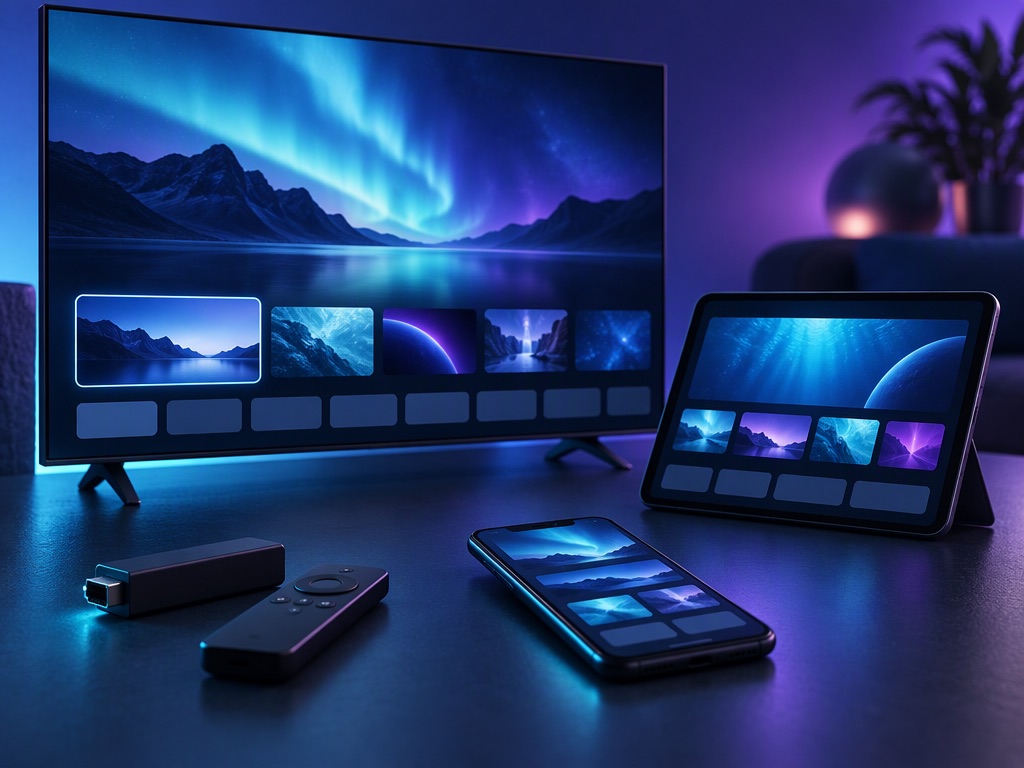
Android TV and Google TV devices are among the more flexible ways to run an IPTV player, because they support a wide range of apps and external hardware. Flexibility also means more variation: a television with Android TV, a Google TV dongle and a generic Android box can behave differently even though they share a platform name.
This guide covers the general setup sequence and the checks that prevent most failures. IPTVPlive publishes general guidance for the platforms described here. It does not certify specific devices, and it does not claim that every player in an app store is compatible. Confirm the player named in your activation details on your own device.
Before you install
Collect the device model, the platform version and the Google account you will use. Check that the device has storage available and that it is connected to the network you intend to use. If the device is second-hand, sign out of the previous owner’s account and complete any pending system updates first.
Keep your order details nearby. You will need the activation information supplied with the subscription, and it is easier to enter once than to hunt for it mid-setup.
Player availability on Android TV and Google TV
Use the Google Play Store on the device and search for the player named in your activation details. Check the developer name and the listing before installing. A similarly named app from a different developer is not the same product.
Some phones and tablets run a mobile version of an app that is not offered for television. A player that works on an Android phone may not appear on Android TV, and sideloading a phone build onto a television often produces a remote-unfriendly interface. Prefer the television listing when one exists.
Installation steps
- Open the Play Store on the device.
- Search for the player and confirm the developer.
- Install and open the app.
- Accept only the permissions the player needs to function.
- Keep the app updated through the store.
If the store says the app is not available for your device, stop and check with support rather than downloading an APK from an unofficial site. Sideloading is possible on Android TV, but it is a troubleshooting step, not the default.
Activation
Open the player and choose the sign-in or activation option. Enter the details exactly as supplied, watching for spaces and case. If the player offers a device code or a web activation route, follow the instructions on screen and keep the device on the same network while it completes.
Do not enter the same code into multiple players. That can consume a connection or create conflicting sessions. If activation fails, note the exact message before trying again.
Remote and interface tips
Television players are designed for a remote, so navigation should work with the directional pad and the select button. If an app expects touch input, it is probably a mobile build and a poor fit for the device. Some players support a mouse pointer mode; use it only when necessary.
Learn the remote shortcut for the app switcher and the home screen. If the player freezes, closing it from the app switcher is usually cleaner than pulling the power.
Network settings
Android TV devices often support both Wi-Fi and Ethernet. A wired connection is more stable if the device has a port or a compatible adapter. If you use Wi-Fi, check the signal at the device rather than at the router, and prefer the 5 GHz band at short range.
If playback fails while other apps work, test whether a VPN, DNS filter or private DNS setting is interfering. Change one setting at a time and note the result. A private DNS setting that blocks a domain can break a player without any obvious error.
Common errors and what they mean
“App not available for this device”. The store listing does not support your model or platform version. Check for a television-specific player or use a different device.
“Invalid activation details”. Re-enter the details carefully. If the error persists, contact support with the exact message; do not keep retrying the same code.
Playback starts then stops. Check the network and the player version. Restart the device, then test a different stream to see whether the problem is specific.
Remote buttons do nothing inside the app. The app may be a mobile build or may have lost focus. Close it from the app switcher and reopen it.
When to use a different device
If the Android TV device is old, short on storage or no longer receiving updates, a newer streaming device may be the simpler answer. The same applies if the app store no longer offers a compatible player. Replacing a small device is usually cheaper than replacing a television.
Where to go next
Read the devices page for platform checks, the smart TV guide for television-specific setup, or the buffering checklist if playback is unstable. The setup guides collect the step-by-step material.
Which Android TV devices are supported?+
Support depends on whether the device can install a compatible player from its store. Check the model, platform version and store listing before ordering.
Can I sideload the player?+
Sideloading is possible on Android TV but is a troubleshooting step, not the default. Unofficial APK sites are a security risk; use the official store where possible.
Why is the app not in the Play Store on my TV?+
The listing may not support your device type or platform version. Look for a television-specific player or ask support before using an alternative source.
Do I need a Google account?+
A Google account is normally required to use the Play Store on Android TV and Google TV devices.
How many devices can use one plan?+
The connection limit is part of the plan. Check the plan details and do not share access beyond the stated limit.
What if activation keeps failing?+
Check the details for spaces and case, then contact support with the exact error message and the device model. Avoid entering the same code repeatedly.
Confirm your device first.
The device pages explain what to check before you order a plan.
Prefer to ask first? admin@iptvp.live