
IPTV Buffering Troubleshooting: Network, Wi-Fi and Device Checks.
Buffering is a symptom, not a diagnosis. Work through the connection, the network and the device in order instead of changing settings at random.
Built for the screens you own
Compatibility depends on the device model and player app. Check the plan details before ordering.
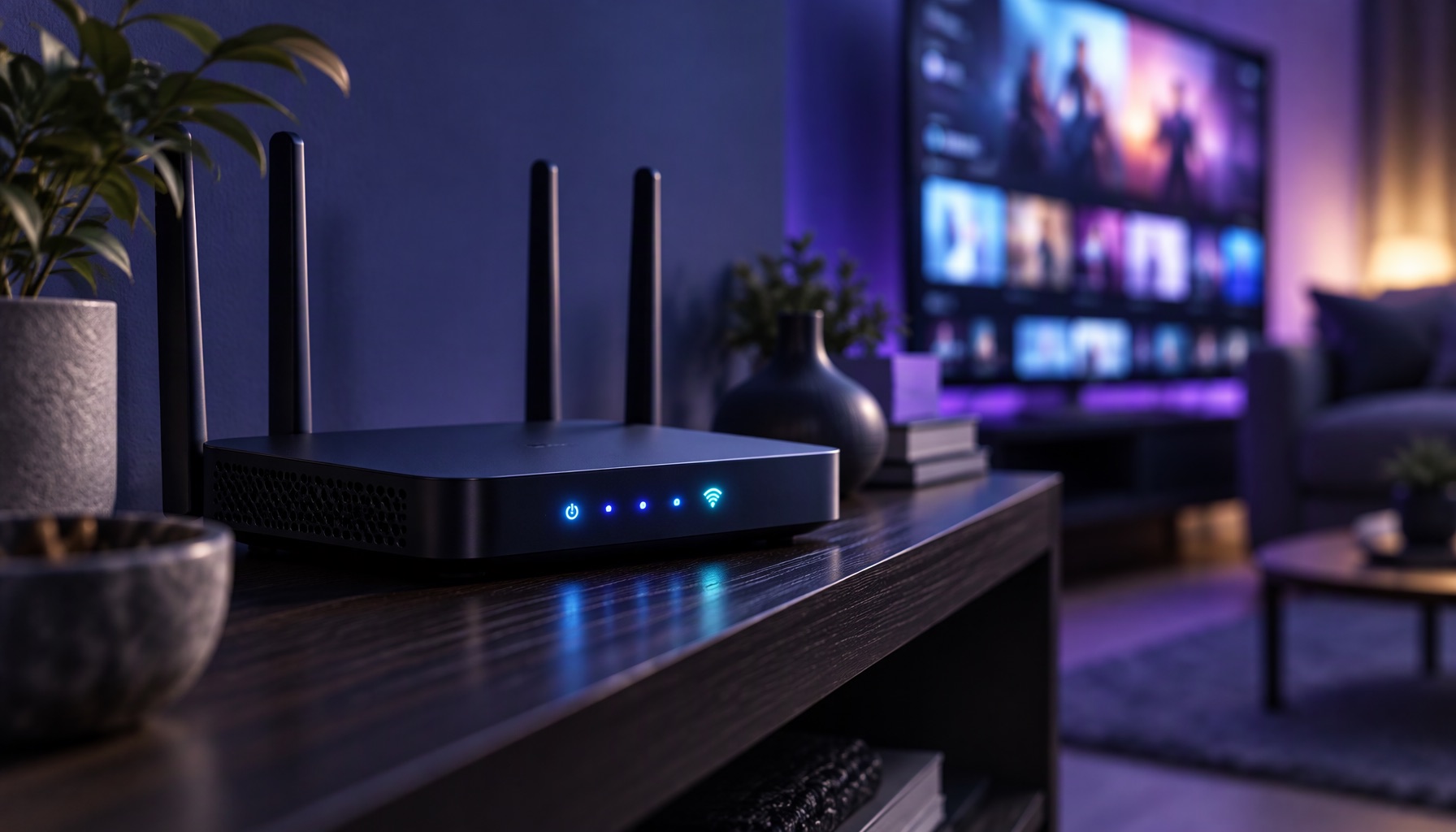
Buffering means the player is not receiving data fast enough to keep the picture moving. That can happen at the service, at your internet provider, on your Wi-Fi, on the device or inside the player app. Because the symptom looks the same in every case, the only reliable approach is to test one layer at a time and keep notes.
This guide describes general diagnostics. It does not promise that a particular setting will fix your connection, and it does not claim that any service is immune to buffering. If the problem continues after the checks, contact support with the evidence you collected.
Separate the symptom from the cause
Before changing anything, write down what happens: how often it buffers, whether it affects every stream or only some, whether the picture freezes or the app closes, and the exact error message if one appears. A pattern is more useful than a description like “it keeps buffering”.
Also note the time of day. If the problem appears only in the evening, the local network or the internet provider may be congested. If it appears only on one device, the device is the likely cause.
Step 1: test the connection
Run a speed test on a device connected to the same network. Then run one on the streaming device itself if the platform allows it. Compare the results. A phone on mobile data is not a fair comparison with a television on Wi-Fi.
Check whether other internet activity is working normally. If video calls and downloads are also slow, the problem is probably the connection rather than the subscription. Restart the router once, wait for it to reconnect and test again.
Step 2: check Wi-Fi and cabling
Distance, walls and interference affect Wi-Fi more than most people expect. Move the device or the router if you can, or connect by Ethernet for a test. A wired connection that works while Wi-Fi fails points to the wireless link, not the service.
Check which band the device uses. The 5 GHz band is usually faster at short range but travels less well through walls; 2.4 GHz travels further but is more congested. A device that keeps switching bands can produce intermittent stalls.
Step 3: try a second device
If you have another device, install the player there and test the same stream on the same network. If the second device is fine, the original device or its app is the likely cause. If both fail, the network or the service is more likely.
Use the same network for this test. Comparing a wired television with a phone on mobile data tells you nothing useful.
Step 4: review player settings
Look for settings that affect buffering, video quality or hardware decoding. A player set to the highest quality on a weak connection will buffer more; lowering the quality for a test can show whether bandwidth is the limit. Hardware decoding usually helps on older devices, but not every player exposes the option.
Clear the player cache if the app offers it, then reopen the stream. Avoid changing several settings at once; you will not know which change mattered. If a setting makes things worse, put it back.
Step 5: check the device itself
Restart the device properly rather than putting it to sleep. Check for operating system updates, and check free storage. A device that is nearly full or running an old system can stutter even on a good connection.
If the device is old, an external streaming device may be the practical upgrade. It brings a newer player and its own network hardware, which can solve problems that no amount of router tweaking will fix.
Step 6: contact support with evidence
If the checks above do not solve it, contact support with: the order number, the device model and platform, the player name and version, the exact error message, the time the problem occurred and the steps you already tried. That list lets support rule out causes quickly. If you are using an IPTVPlive subscription, include the email address used at checkout so the order can be located.
The contact page explains the route used here. Send one clear message rather than several partial ones, and do not open a second order while a support case is open.
What buffering does not prove
Buffering does not prove that a subscription is faulty, and a working stream does not prove that every device and network will work. It also does not justify a claim that a service never buffers. The honest statement is that playback depends on the whole chain, and the chain has to be tested.
Prevention
Use a wired connection where possible, keep the device updated, avoid running large downloads during viewing, and test after any change to your router or internet plan. Keep the order details somewhere you can find them. These habits prevent more problems than any single setting.
Where to go next
If the device cannot install the player at all, read the smart TV setup guide or the Android TV guide. For plan and activation questions, see how it works or the FAQ.
Why does IPTV buffer in the evening?+
Evening congestion on the local network or with the internet provider is a common cause. Test at different times and compare a wired connection with Wi-Fi.
Does buffering mean the subscription is broken?+
Not necessarily. Buffering can come from the network, the device, the player or the service. Test one layer at a time before concluding.
Will a VPN stop buffering?+
Not reliably. A VPN adds another hop and can make playback slower. It also does not change the content rights that apply where you live.
Should I lower the video quality?+
As a test, yes. Lowering quality shows whether bandwidth is the limit. If it helps, the connection or the device is the likely constraint.
When should I contact support?+
After you have tested the connection, tried a second device and noted the error. Send the order number, device details and the steps you tried.
Can I get a refund for buffering?+
Refund requests are assessed under the published refund policy and consumer law where you live. Contact support first so the cause can be checked.
Need a hand with setup?
Send the device details and the exact error message so support can help efficiently.
Prefer to ask first? admin@iptvp.live